November 22, 2026
A computer relies on several small hardware components to maintain reliable performance, including parts that users rarely think about until something goes wrong. One example is the CMOS battery, which helps preserve important system settings when a computer is powered off. When this battery begins to fail, users may experience startup errors, incorrect dates, and other unexpected problems. Understanding how CMOS battery replacements work and recognizing other minor hardware issues can help computer owners determine when professional computer repairs are necessary to maintain their devices and avoid more extensive damage.
Understanding the Purpose of a CMOS Battery
The CMOS battery is a small, round battery located on a computer's motherboard. Its primary purpose is to provide power to the complementary metal-oxide-semiconductor (CMOS) memory, which stores basic system information and configuration settings. These settings help the computer maintain essential information even when it is disconnected from its primary power source.
Although modern computers use updated firmware technologies, including UEFI, the CMOS battery still plays an important role in maintaining certain system settings. It helps preserve information such as the system date, time, and hardware configuration preferences. When these settings are not retained properly, professional computer repairs may be necessary to identify and resolve the underlying issue.
Most desktop computers use a coin-shaped lithium battery, commonly a CR2032. These batteries can last several years, although their lifespan depends on the computer's design, usage, and operating conditions. When the battery loses its ability to hold a charge, replacing it can restore normal functionality without requiring an extensive hardware overhaul.
Recognizing Common Signs of CMOS Battery Failure
A failing CMOS battery can cause several noticeable problems. Because the battery powers important motherboard settings, its deterioration may affect how a computer behaves at startup and during regular operation. Recognizing these warning signs can help users determine when professional computer repairs may be needed to restore normal functionality.
Some common warning signs include:
- Incorrect Date and Time: The computer repeatedly displays the wrong date or time after being shut down.
- BIOS Configuration Errors: Previously saved BIOS settings reset whenever the system loses power.
- Startup Messages: The computer displays CMOS checksum errors or prompts users to enter the BIOS setup during startup.
- Booting Difficulties: The system may struggle to start properly when saved configuration settings are lost.
- Hardware Recognition Issues: Certain configuration changes may cause the computer to have difficulty recognizing installed components.
These symptoms do not always indicate a failing CMOS battery. Other hardware problems, firmware issues, or configuration errors can produce similar results. Proper diagnostics help identify the actual cause before any components are replaced.
Replacing a CMOS Battery Safely
Replacing a CMOS battery is generally a straightforward hardware procedure, particularly on desktop computers with accessible motherboards. However, the process requires careful handling because the battery is connected directly to a sensitive electronic component.
Before beginning a replacement, the computer should be completely shut down and disconnected from its power source. Technicians should also follow appropriate electrostatic discharge precautions to prevent static electricity from damaging internal components.
The replacement process generally involves the following steps:
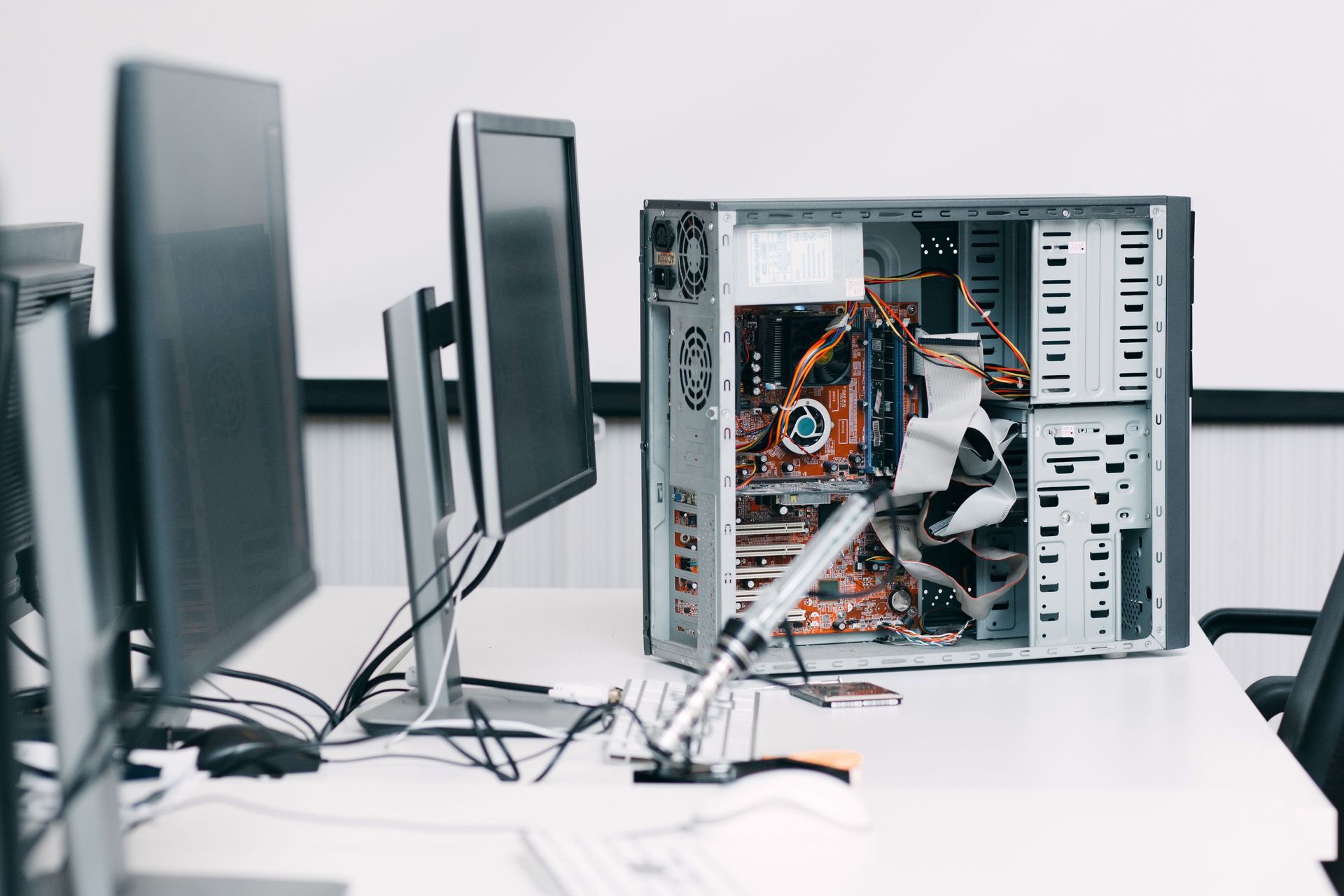
- Accessing the Motherboard: Remove the computer's case panel or other necessary components to locate the CMOS battery.
- Identifying the Battery: Confirm the battery type and specifications before purchasing a replacement.
- Removing the Old Battery: Carefully release the battery from its holder without damaging the surrounding components.
- Installing the Replacement: Position the new battery correctly, ensuring that its positive and negative sides match the motherboard's requirements.
- Restoring System Settings: Reconnect the computer, enter the BIOS setup if necessary, and restore the correct date, time, and configuration preferences.
Laptop battery replacements can be more complicated because the CMOS battery may be located beneath other internal components or connected through a small cable. Some newer laptops also integrate this function into other power systems. Professional assistance can help prevent accidental damage during these procedures.
Identifying Other Minor Hardware Problems
CMOS battery failure is only one example of a relatively small hardware issue that can interfere with computer performance. Other components may gradually wear out or develop problems that affect everyday functionality.
Recognizing these issues early can help users avoid more disruptive failures.
Some common examples include:
- Loose or Damaged Power Connections: A damaged DC jack or loose connection can prevent a laptop from charging consistently.
- Failing RAM Modules: Defective memory can contribute to unexpected crashes, freezing, and startup problems.
- Worn Cooling Components: Dust buildup or cooling system problems can cause overheating and reduced performance.
- Damaged Keyboards: Individual keys or entire keyboard assemblies may stop responding due to normal wear or accidental spills.
- Storage Problems: Aging hard drives and failing solid-state drives can contribute to slow performance, startup errors, and data accessibility issues.
Many of these problems can be addressed through targeted computer repairs rather than replacing the entire device. A professional assessment can determine whether a component needs adjustment, replacement, or additional troubleshooting.
Understanding the Importance of Professional Diagnostics
Although some hardware problems appear relatively simple, identifying their underlying causes can require technical knowledge and specialized equipment. Replacing a component without confirming the source of the problem may result in unnecessary expenses or leave the original issue unresolved.
Professional diagnostics involve evaluating the computer's hardware, testing individual components, and examining any error messages or performance irregularities. This process helps technicians determine which parts are functioning correctly and which require attention.
For example, a computer that repeatedly loses its date and time may have a depleted CMOS battery. However, if replacing the battery does not resolve the issue, the motherboard or another component may require further inspection.
According to Gitnux, approximately 75% of professional computer repairs are completed within two days. This demonstrates how relatively straightforward hardware problems can often be addressed without extended downtime, although repair times depend on the issue, component availability, and the complexity of the work.
Micro Tech Computers provides hardware diagnostics, component testing, and repair services to help identify and resolve problems affecting computer performance. Its technicians also handle hardware upgrades, motherboard replacements, and other component-related issues.
Extending Computer Lifespan Through Routine Maintenance
Taking care of a computer's internal components can help maintain reliable performance and reduce the likelihood of unexpected hardware problems. Even minor maintenance tasks can make a difference when performed consistently.
Computer owners can support long-term hardware reliability by following several basic practices:
- Keep Components Clean: Periodically remove dust from accessible vents and cooling areas to support proper airflow.
- Monitor System Performance: Pay attention to unusual noises, unexpected shutdowns, and repeated error messages.
- Protect Against Power Issues: Use a quality surge protector to help reduce the risk of electrical damage.
- Check Connections: Inspect power cables, adapters, and external connections for visible wear or damage.
- Address Problems Early: Arrange professional computer repairs when hardware issues begin to interfere with normal use.
These habits can help prevent minor issues from developing into more expensive problems. They also make it easier to recognize when a component needs professional attention.
Choosing Reliable Support for Minor Hardware Repairs
When a computer begins experiencing hardware problems, choosing an experienced repair provider can make the process easier. Qualified technicians can evaluate the device, explain which components need attention, and recommend practical solutions based on its condition.
Micro Tech Computers has served the Burnsville, Minnesota, area since 1991, providing hardware repairs and upgrades for a range of computer brands. Its services include RAM upgrades, hard drive and SSD replacements, power supply repairs, motherboard replacements, and component diagnostics. The business also offers free same-day estimates, same- or next-day service for most repairs, and a 90-day warranty on completed work.
Whether a computer needs a CMOS battery replacement, additional troubleshooting, or another minor hardware adjustment, professional computer repairs can help restore dependable operation without immediately investing in a new device.
A failing CMOS battery or another small hardware problem does not necessarily mean a computer has reached the end of its useful life. Identifying the issue, replacing worn components, and addressing performance concerns early can help users get more value from their existing equipment. For reliable diagnostics and professional hardware solutions, contact Micro Tech Computers today to schedule a free same-day estimate.